
How to transcribe a video to text on iPhone
Otofumi reads the sound from a video file and turns the speech into text with timestamps. You can copy the text or export subtitles, all on your iPhone or iPad.
Which videos work
- Works: mp4, mov and 3gp files with a sound track, such as videos you filmed, screen recordings and exported meeting recordings.
- Doesn't work: WebM files, videos without sound, copy-protected videos such as purchased films, and links to streaming sites. Otofumi needs the video file itself.
Steps
- Get the video into Files, or open its Share button. For a video in Photos, tap Share, then Save to Files. For a video in another app, tap that app's Share button.
- Send it to Otofumi. In Otofumi, tap Import and pick the file, or choose Otofumi in the share sheet. On iPad you can drag the file into Otofumi. If Otofumi isn't in the share sheet, tap More at the end of the app row and add it.
- Choose the language spoken in the video. The first time you use a language, iOS downloads its speech model from Apple.
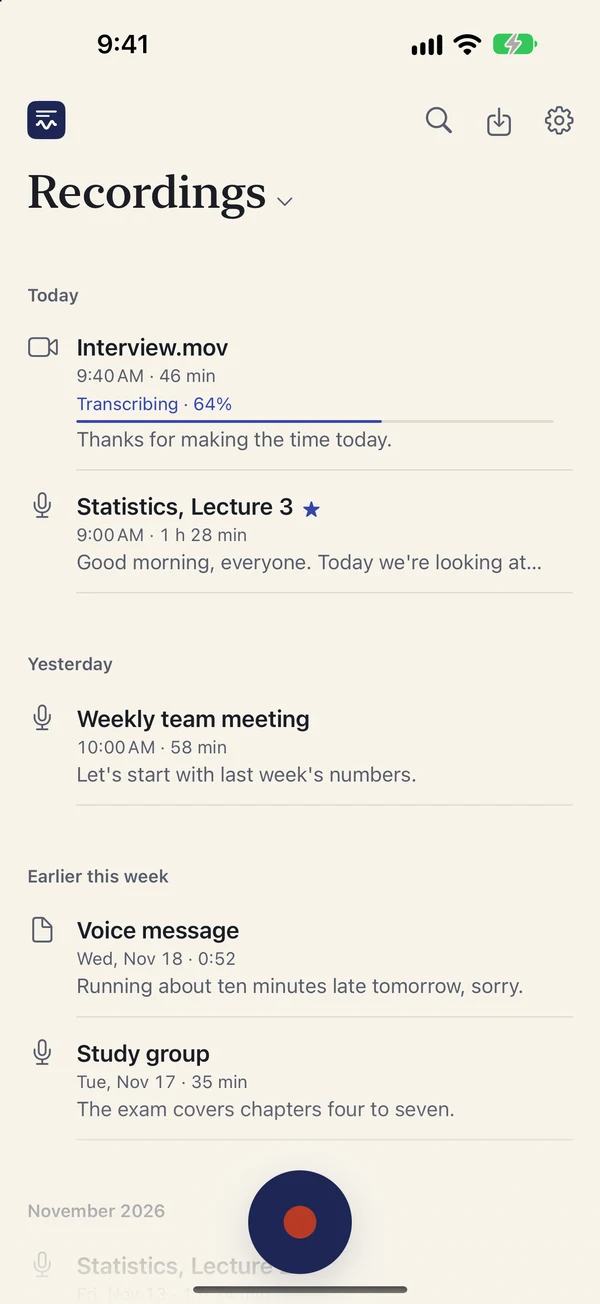
- Wait for the transcript. You can leave the app; iOS shows the progress and you get a notification when it's done.
- Check and edit. Tap any word to play the audio from there and fix any mistakes. The timestamps stay correct.
Make subtitles
With Pro, export the transcript as SRT or VTT. Most video editors and video sites accept one of these. Edit the transcript before you export, because the subtitle file uses your edited text.
Longer than 30 minutes? Without Pro, the first 30 minutes of every file are transcribed, and the transcript ends with a button to transcribe the rest. The audio is kept, so nothing is lost.
Tips for better text
- Speech over loud music or sound effects is harder to transcribe. Clear speech gives the best result.
- If the video mixes languages, choose the main one. Otofumi transcribes one language at a time.
- Otofumi keeps only the sound in its library, not the video, so a long video takes much less space in the app.