
How to transcribe a lecture on iPhone
A lecture is long, fast and full of terms you'll want to find again. Here is how to record one on your iPhone and get searchable text, without uploading the audio anywhere.
Before the lecture
- Ask first. Many schools and lecturers have rules about recording. Check them, and ask the lecturer if you're unsure.
- Set up the language once, on Wi-Fi. Open Otofumi, choose the language the lecture is in and make a short test recording. The first time, iOS downloads that language's speech model from Apple. After that you don't need a connection in class.
- Check battery and storage. A long recording with live text uses battery, so start charged. Audio is stored compressed, but a term of lectures adds up; you can delete the audio later and keep the text.
During the lecture
- Sit near the speaker, or near a loudspeaker if the room uses one. Distance and room echo are what hurt accuracy most.
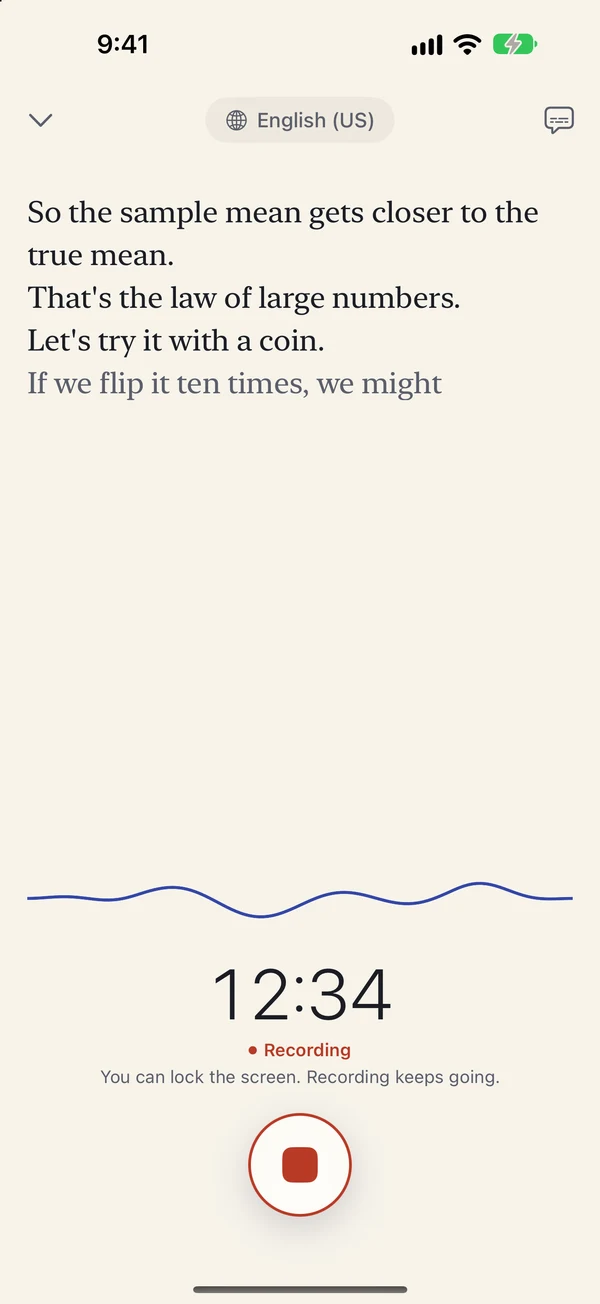
- Tap Record. The words appear on screen as the lecturer speaks. Grey words are still settling; they turn solid when final.
- Lock the screen if you like. Recording and live text keep going with the screen off or while you use another app. If a call comes in, recording pauses and continues afterwards in the same file.
- Tap Stop at the end. Otofumi checks the whole recording and fills any gaps in the text.
Lectures longer than 30 minutes: without Pro, the first 30 minutes of every recording are transcribed. The recording itself never stops, and the full audio is kept. If you buy Pro later, the rest is transcribed then.
After the lecture
- Find a topic: search works across every transcript, so you can find a term from any class.
- Hear it again: tap any word to play the recording from that moment.
- Fix terms: edit names or technical words the engine got wrong. The timestamps stay correct.
- Organise: keep one folder per course and mark key lectures as favourites.
- Take notes elsewhere: copy the text, or with Pro export Markdown, DOCX or PDF.
- Revise faster: with Pro, a draft summary picks out the main points on devices with Apple Intelligence. Check it against the transcript; it is a draft.
Already have a recording?
If you recorded the lecture with another app, share the audio file to Otofumi from that app, or open it from the Files app. Video recordings work too. See how to transcribe a video.